
0
Your selection
Total$0.00
CheckoutUser guide for connecting Zoom and managing meeting links
Connect your Zoom account to Apex Suite AI to create and manage attendee-safe Zoom meeting links from Calendar & Daily Tasks. This guide covers connection, event scheduling, updates, removal, and support.
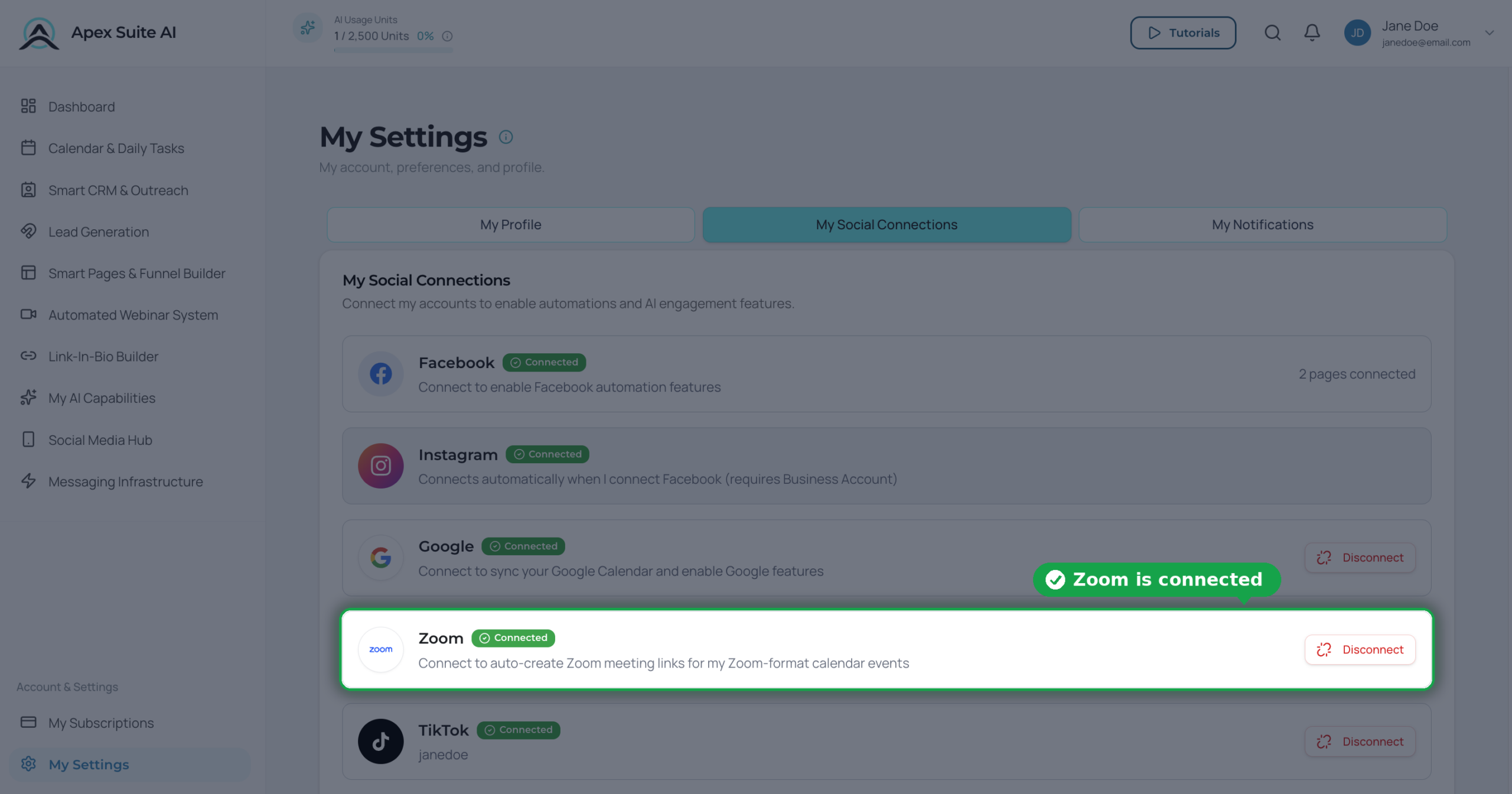
You can also connect or disconnect Zoom from the Link My Calendar section in Calendar & Daily Tasks.
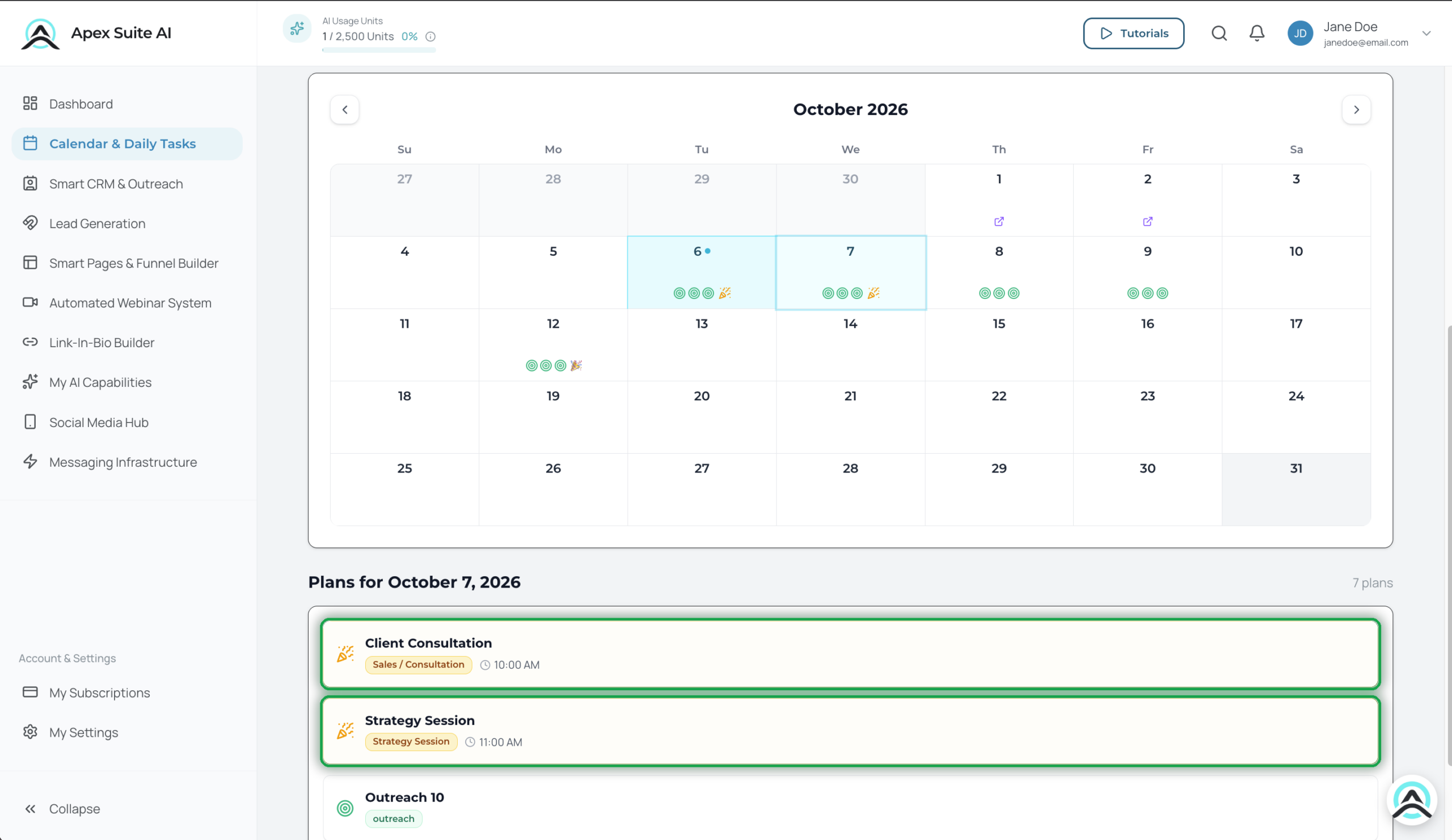
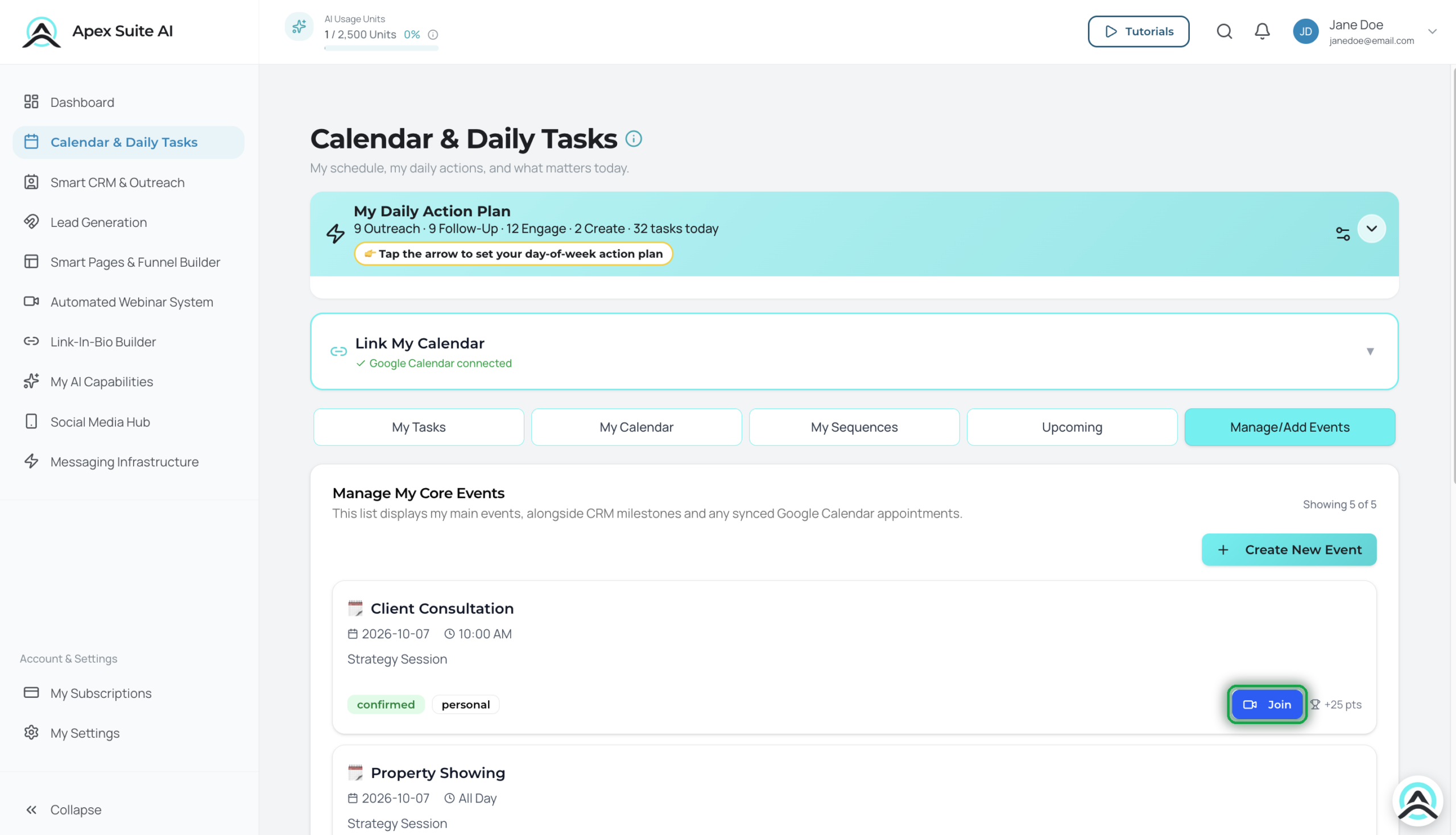
Open the saved event in Apex Suite and select Join to open its Zoom meeting link. The meeting also appears under upcoming meetings in the connected Zoom account.
Disconnecting stops ApexSuite from creating or managing future Zoom meeting links for that account. Existing Zoom links on Apex Suite calendar events are not removed, and existing Zoom meetings are not automaticallycancelled. You can reconnect later.
After Zoom deauthorizes the app, Apex Suite stops future Zoom actions for that connection. Reconnect the integration in ApexSuite before creating or managing additional Zoom meetings.
While Zoom is connected, Apex Suite stores encrypted Zoom access and refresh tokens and the minimum connection metadata needed to create, update, cancel, and manage Zoom meetings. Browser users never receive raw tokens. When you disconnect or remove the app in Zoom, Apex Suite marks the connection disconnected and future Zoom actions require a new connection.
I cannot connect Zoom. Confirm you are signed in to Apex Suite and that the Zoom account can authorize third-party apps. Retry from My Settings > My Social Connections.
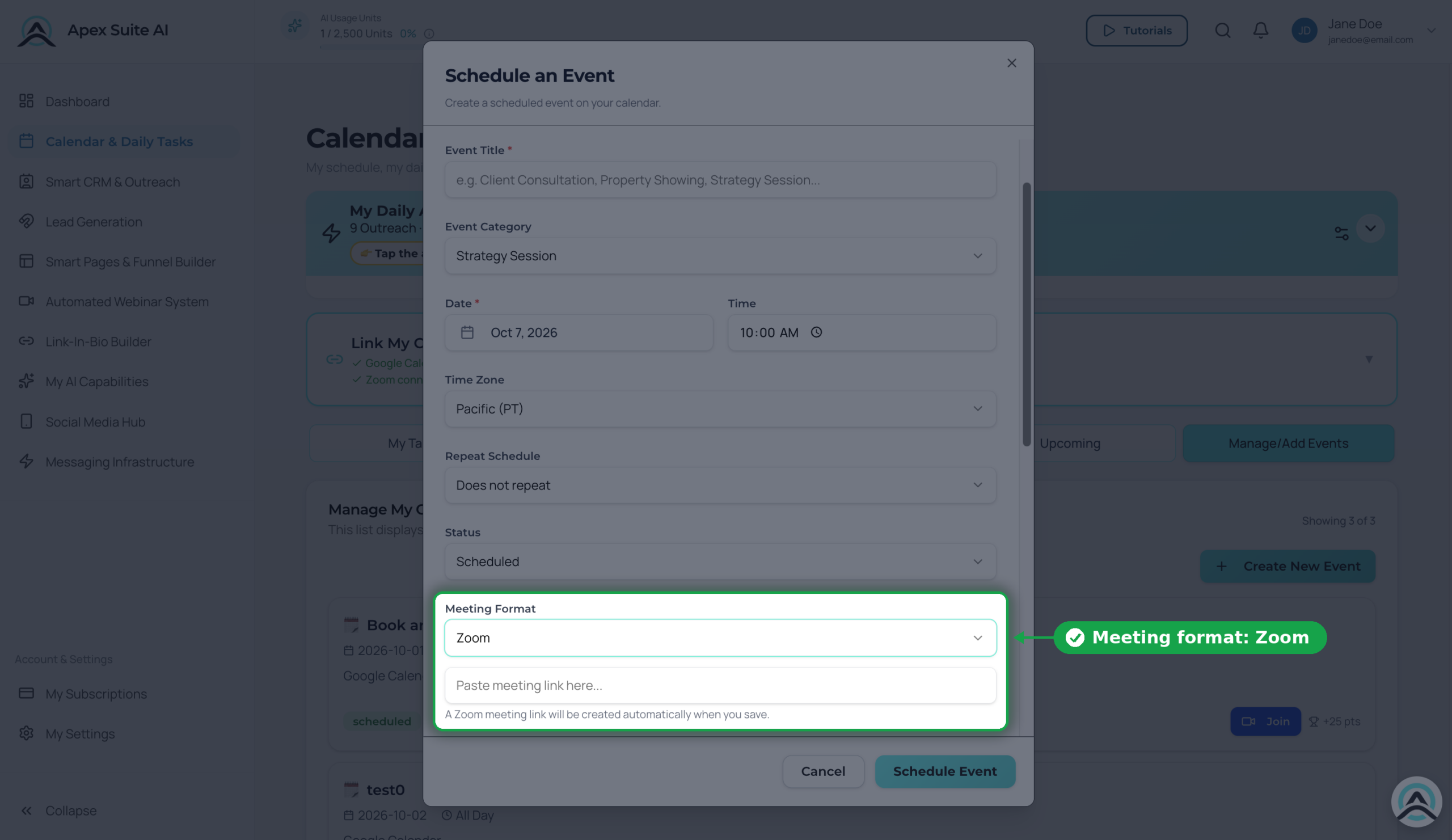
A Zoom link was not created. Confirm Zoom shows Connected, the event Meeting Format is Zoom, and the meeting-link field was left empty. Save the event again after reconnecting Zoom if needed.
The meeting time is incorrect. Edit the Apex Suite event and confirm its date, time, and selected time zone before saving.
I cannot join the meeting. Open the event in Apex Suite and select Join. If the event uses a manually pasted link, verify that link is valid.
For help, visit https://preview-wordpress.apexsuiteai.com/support/ or email [email protected].
$
247
.99
Required per business. Covers the onboarding work to get your messaging system properly set up — intake, brand registration submission with the carriers, phone number provisioning, and infrastructure configuration. With new industry compliance requirements taking effect, this setup ensures your system is built to the latest standards from day one.
What’s included:
For individuals and small businesses getting started with compliant messaging.
$
79
.99
per month
Optional: +1 additional campaign for $24.99 / month (max 2 total)
For growing businesses running consistent outreach across multiple messaging use-cases like promotions, reminders, and follow-ups.
$
149
.99
per month
Optional: Up to +2 additional campaigns for $24.99 / month each (max 4 total)
For established businesses with large contact lists and higher message volume that need infrastructure built for scale.
$
299
.99
per month
Optional: Up to +3 additional campaigns for $24.99 / month each (max 6 total)
For individuals and small businesses getting started with compliant messaging.
$
799
.90
per year
Includes 2 months free
Optional: +1 additional campaign for $24.99 / month (max 2 total)
For growing businesses running consistent outreach across multiple messaging use-cases like promotions, reminders, and follow-ups.
$
1,499
.90
per year
Includes 2 months free
Optional: Up to +2 additional campaigns for $24.99 / month each (max 4 total)
For established businesses with large contact lists and higher message volume that need infrastructure built for scale.
$
2,999
.90
per year
Includes 2 months free
Optional: Up to +3 additional campaigns for $24.99 / month each (max 6 total)
Timeline to send:
Your phone number is provisioned quickly. Carrier review for A2P 10DLC takes approximately 1–4 weeks for full approval. However, some registrations may require additional vetting, documentation, or carrier review depending on the nature of the business, messaging use case, industry category, campaign type, or overall compliance requirements — this window is set by US telecom carriers and applies to every messaging platform, not just Apex Suite. Toll-Free verification (when applicable) takes on average 3–7 days. We’ll keep you updated through every step inside your dashboard.
Want more volume? Add a boost anytime. (Purchase in APP)
Your order includes the $247.99 one-time Messaging Infrastructure setup fee. This covers brand registration, phone number provisioning, and full infrastructure configuration.
A few things to know before you confirm